Four steps to a useful collection
You can be up and running in a few minutes. Everything else in this guide is detail you can come back to.
-
Make a humidor
Humidors tab →
+. Give it a name, a capacity, and the humidity you're aiming for. Even one is enough to start. -
Add your cigars
Collection tab →
+to enter one by hand, or the scan button to photograph a shelf and let the AI read the bands. - Record how they're packaged On a cigar, add a lot for each box, tin, or handful of singles you own. This is what drives the aging clock.
- Log what you smoke Quick Smoke just decrements the count. Leave Review also saves a rating and your notes.
A cigar is a blend — “Padrón 1964 Anniversary”. A lot is a specific batch of that blend that you bought: a sealed box of 25 from 2024, three singles you picked up last month. Ash Tag counts sticks at the lot level and rolls them up to the cigar, which is what lets one blend rest in two humidors on two different clocks.
The five tabs
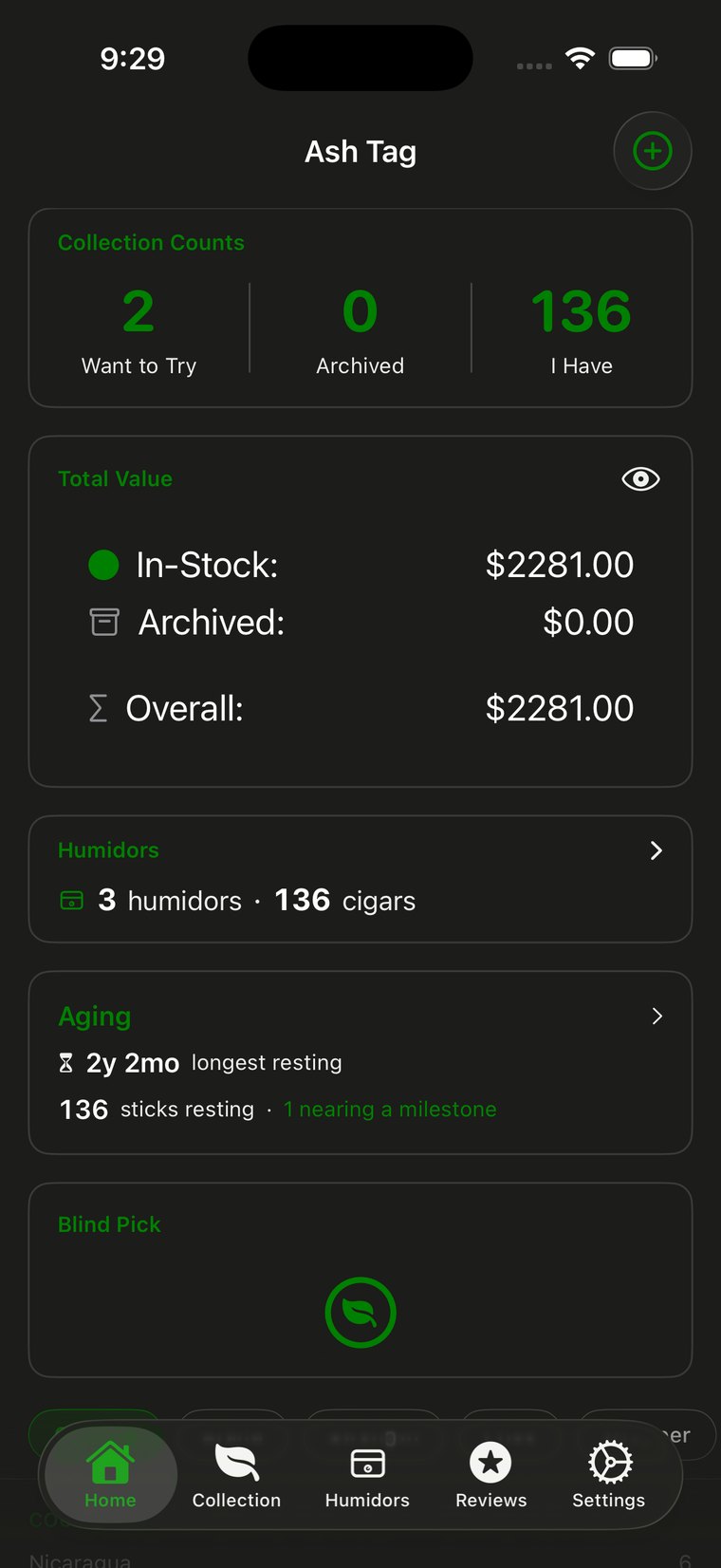
Home answers “what do I have?” before you go looking. Tap the eye beside Total Value to hide the numbers when someone's looking over your shoulder — it stays hidden until you tap it again.
The Humidors and Aging cards are both tappable and jump straight to the matching screen.
Three ways to add a cigar
Scan a shelf with AI
The camera button at the top of the Collection tab opens Scan Humidor. Take a photo with the bands facing up and the AI reads them, identifies each cigar, and counts how many of each it can see.
You then confirm each result — the model gets the blend right far more often than it gets the exact vitola right, so this is where you set the size and format. You also choose which humidor the batch is filed into, so a whole shelf lands in the right place in one go.
When you save, a summary screen confirms what was added, where it went and what it's worth, then drops you back into the collection sorted by newest.
Scanning is part of the AI Pack subscription (Settings → Upgrade to AI Pack). Everything else described in this guide works without it.
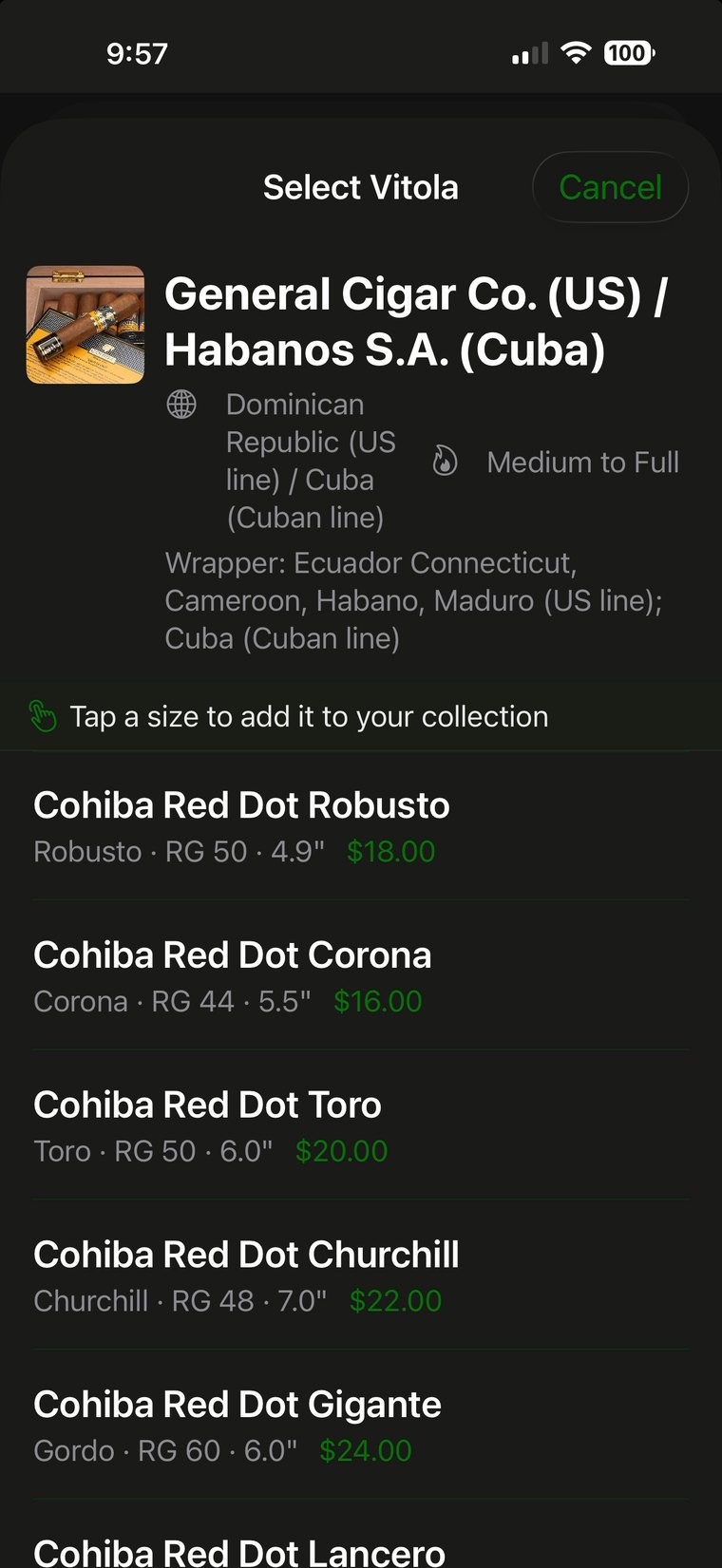
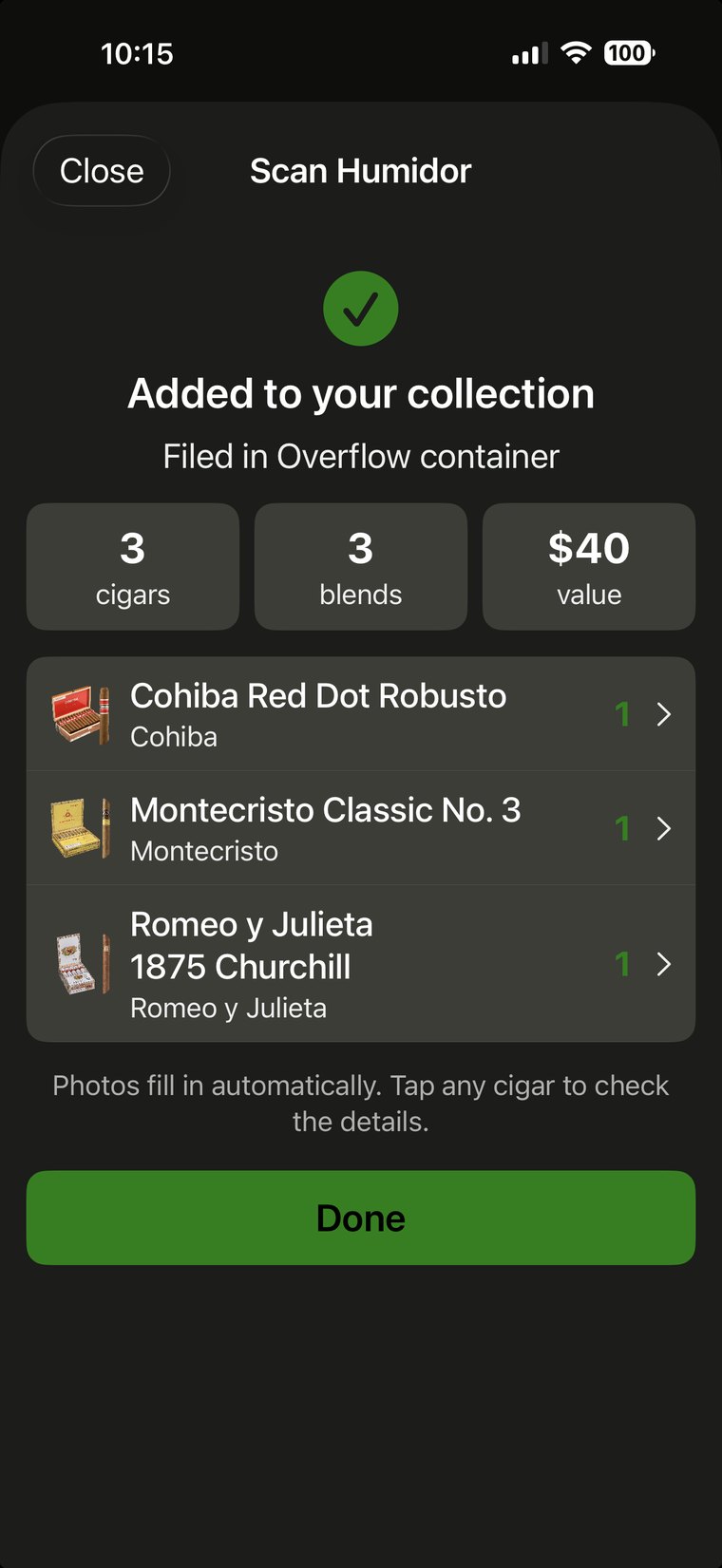
Ash Tag also tries to find a product photo for each cigar automatically and marks it with a small badge so you know it was picked for you rather than by you. If it grabbed the wrong picture, open the cigar, tap edit, and replace it — the badge disappears once you choose your own.
If a band is at an awkward angle or partly hidden, Ash Tag says so at the top of the results rather than guessing quietly. Re-shoot those few, or add them by hand.
Add one by hand
The + button opens a blank cigar. Only the name is really required; everything else can be filled in later or left alone. Brand, country, size, strength and blend all pull from lists you control in Settings, so the more you add the faster this gets.
The Packaging picker decides how the sticks are recorded. Leave it on Single and type how many in Quantity for loose sticks, or choose a box or tin to record a sealed package with its own price. Either way you can set the resting date and the spot right there, without saving and coming back.
Mark something you want to try
Turn on Want to Try and the cigar lands in that filter instead of your in-stock list. It doesn't count toward totals or value. When you finally buy one, switch it off and add a lot.
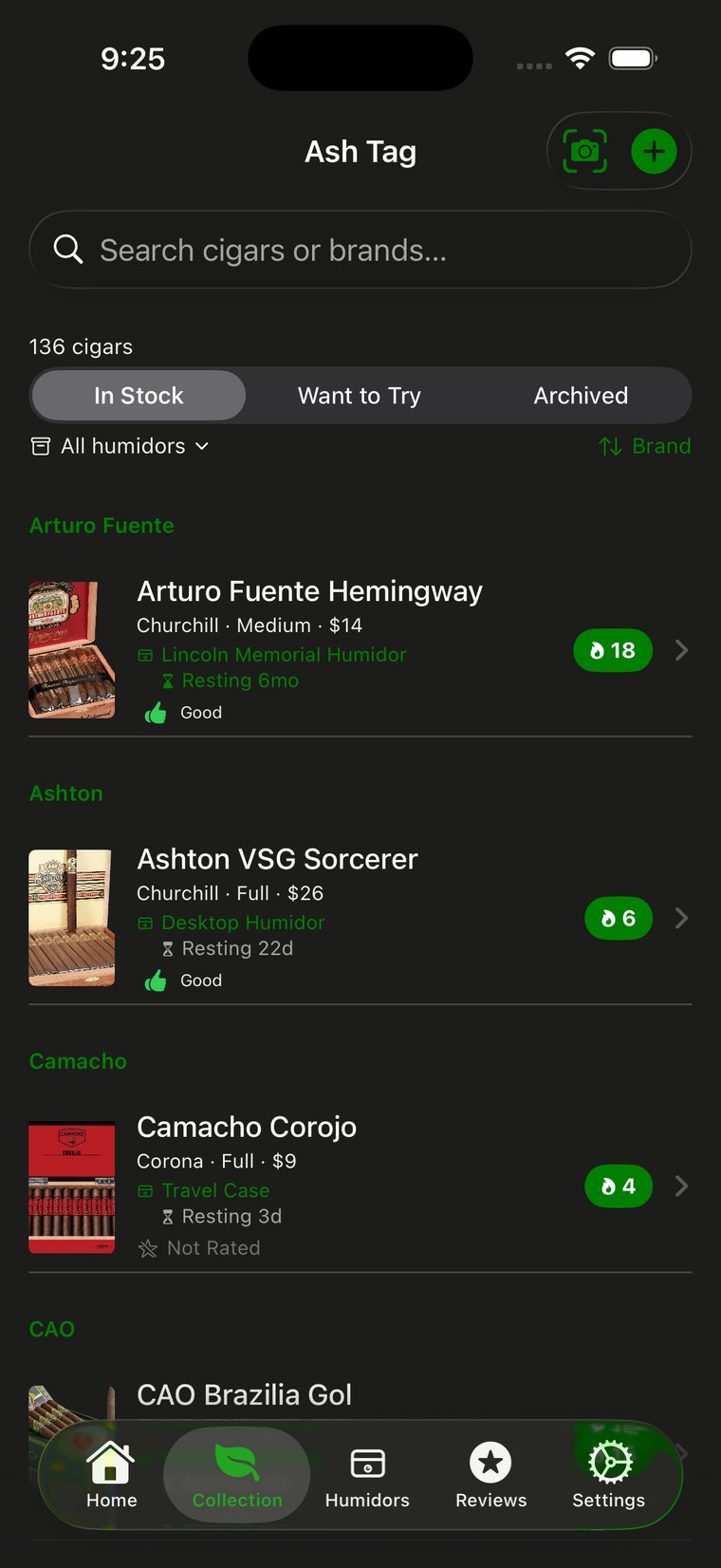
Every row carries the same information: format, strength and price on one line; which humidor it's in and how long it's rested underneath; your rating at the bottom; the count on the right.
Use the In Stock / Want to Try / Archived pills to switch lists, the humidor menu to narrow to one box, and the sort control on the right to reorder — including by age and date added.
Lots & aging
Most collection apps give a cigar one number. That falls apart the moment you own a sealed box and a few singles of the same blend, bought years apart and kept in different places. Lots fix that.
What a lot records
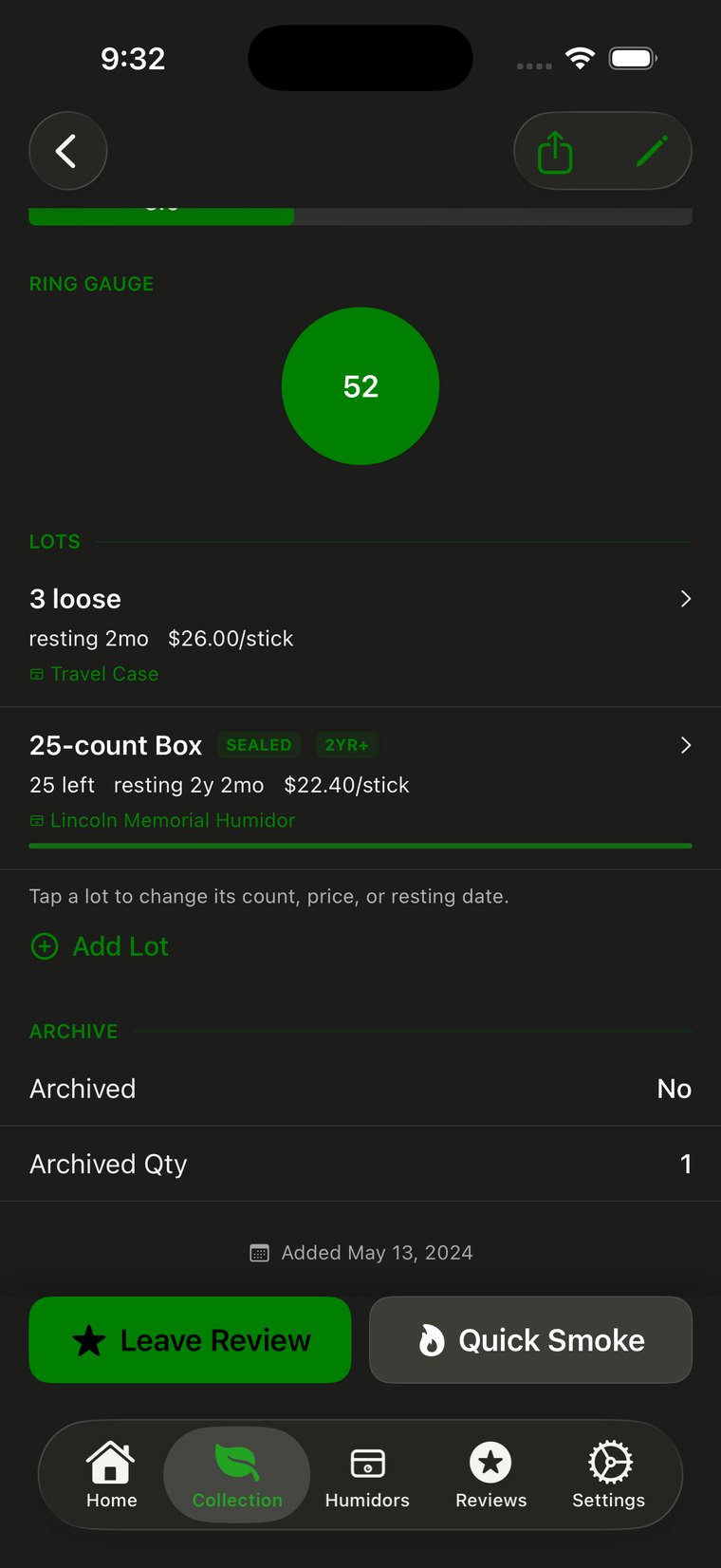
Here one blend is in two places at once: three loose sticks in the travel case resting two months, and a sealed box of 25 in the main humidor at two years and two months.
Tap any lot to change its count, price, or resting date. Add Lot records a new purchase without touching what's already there.
Badges you'll see
Milestone badges appear once a lot crosses a year mark, so a long-resting box stands out in a list without you having to do the arithmetic.
Loose sticks
Loose is the right home for “I have four of these and I don't remember when I got them.” They show up in the lots list as “3 loose” alongside real packages, and carry their own humidor, resting date and spot exactly as a box does — the only difference is that they never came sealed.
Nothing is lost and nothing is asked. Your existing count stays exactly where it is as loose stock, and the new box is added beside it as its own lot.
How the aging clock works
Resting time is one continuous clock from the date on the lot to today. It doesn't pause when you open a box, and it doesn't reset when you smoke one. A stick you bought three years ago has rested three years, whatever else happened in between.
The Aging card on Home shows your longest-resting lot, how many sticks are resting in total, and how many are close to crossing a milestone. Tap it to see the collection sorted by age.
Humidors
A humidor in Ash Tag is anywhere you keep cigars — a cabinet, a desktop box, a travel case, a cooler. Each one records a capacity, a location, and the conditions you're aiming for.
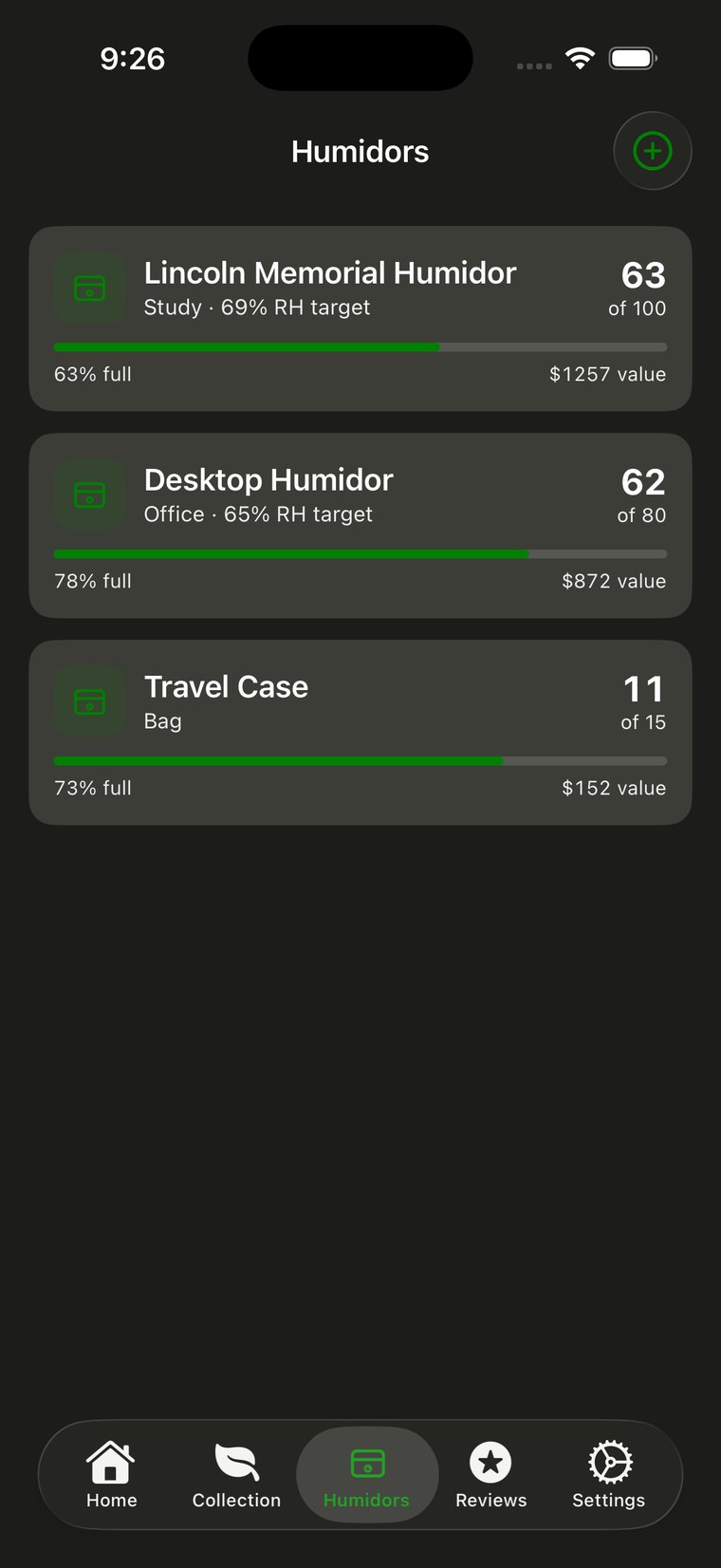
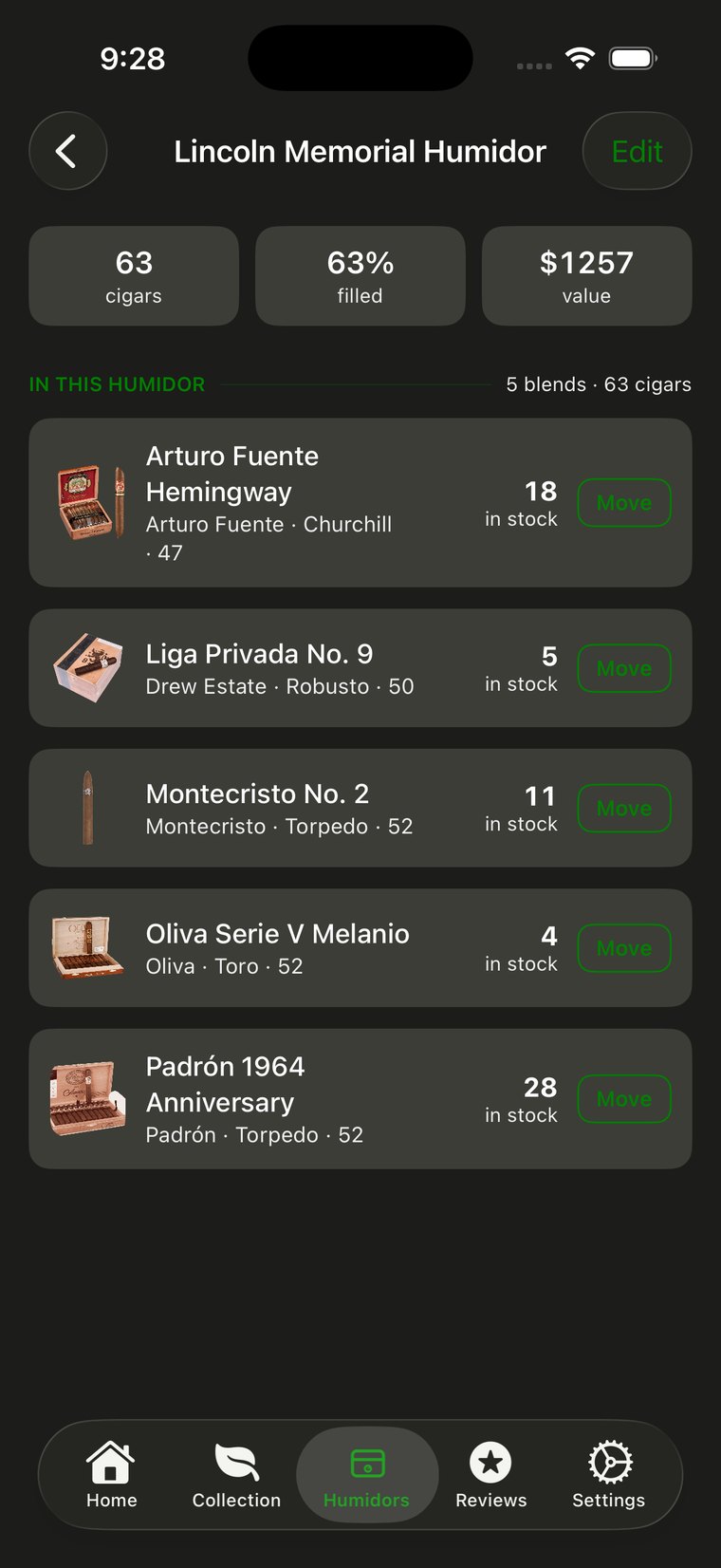
Splitting one blend across two humidors
Set the humidor on the lot rather than the cigar. Leave a lot's humidor blank and it sits wherever the cigar lives; set it and that lot overrides the cigar for that batch only. That's how a box in the cabinet and three singles in the travel case both show up correctly, each with its own resting time.
Move on the humidor screen shifts stock between humidors. Use it when you rotate a box out of the coolerdor, not when you smoke something.
Smoking & reviews
Quick Smoke vs Leave Review
Both live at the bottom of every cigar.
- Quick Smoke — takes one off the count and nothing else. For when you're not writing anything down.
- Leave Review — takes one off the count and saves a rating, the date, and your notes.
Either way you choose which lot it comes out of. Ash Tag suggests open stock before sealed boxes and older lots before newer ones, but the picker lets you override that — useful when you're deliberately cracking a box.
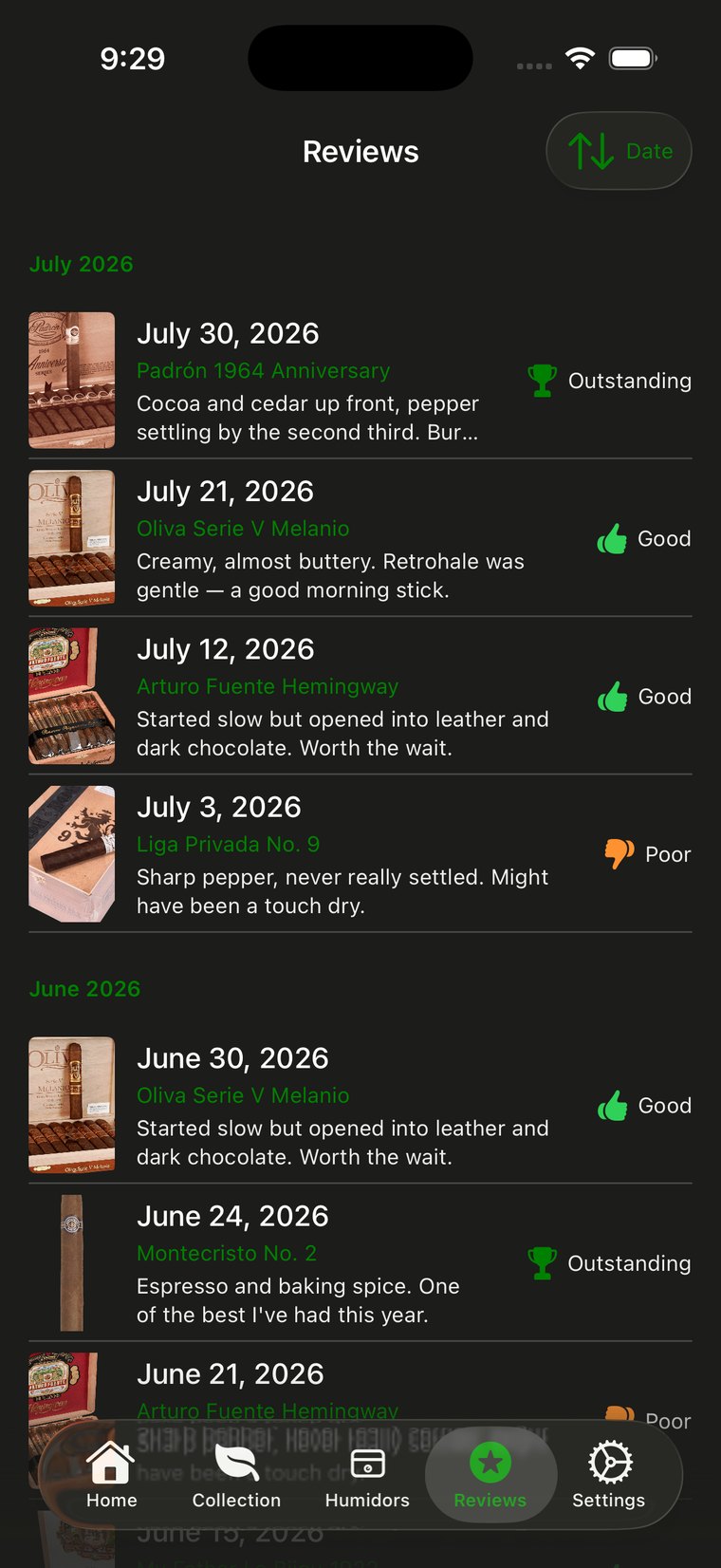
The Reviews tab is your smoking history, newest first. Ratings are Outstanding, Good and Poor — deliberately coarse, because a ten-point scale is a thing you argue with instead of using.
Your most recent rating also shows on the cigar's row in the collection, so you can sort by what you actually liked.
Blind Pick
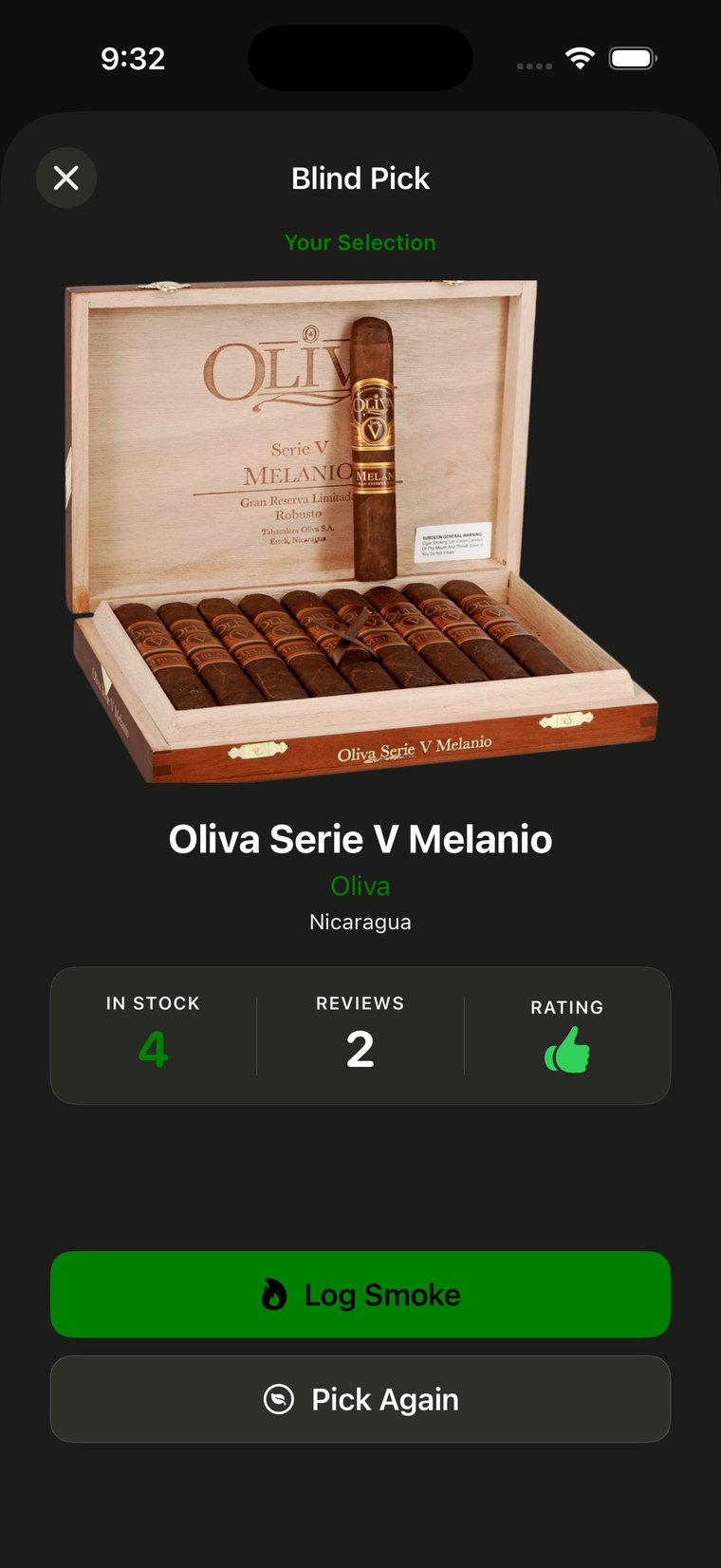
For when you've been staring into the humidor for ten minutes. Tap Blind Pick on Home and it chooses something you actually own.
Log Smoke accepts it and records it. Pick Again rolls the dice one more time — no judgement.
Archiving
Archiving takes a cigar out of your in-stock list without deleting its history. Reviews, ratings and the archived count all stay. Use it for a blend you've finished and don't currently own, so your active collection reflects reality.
Govee humidity sensors
Ash Tag reads Govee H5075 and H5074 hygrometers directly over Bluetooth and shows live temperature and humidity on the humidor they're assigned to.
These sensors broadcast their readings continuously to anything in range. Ash Tag simply listens. You don't need a Govee account, you don't need the sensor on your Wi-Fi, and nothing is sent anywhere.
Pairing one
- Open Settings → Govee SensorsAllow Bluetooth when iOS asks. Nearby sensors appear within a few seconds.
- Identify which is whichIf you have several, the signal strength bars are your friend — walk one sensor toward your phone and watch which entry climbs.
- Give it a name and a humidorName it after the box it lives in. Once assigned, its readings appear on that humidor's screen.
iOS does not allow this kind of passive Bluetooth scanning in the background. Ash Tag reads sensors whenever you're looking at a screen that shows them, and stops when you leave — which is also why it doesn't drain your battery. Open the app to get a fresh reading.
What you'll see
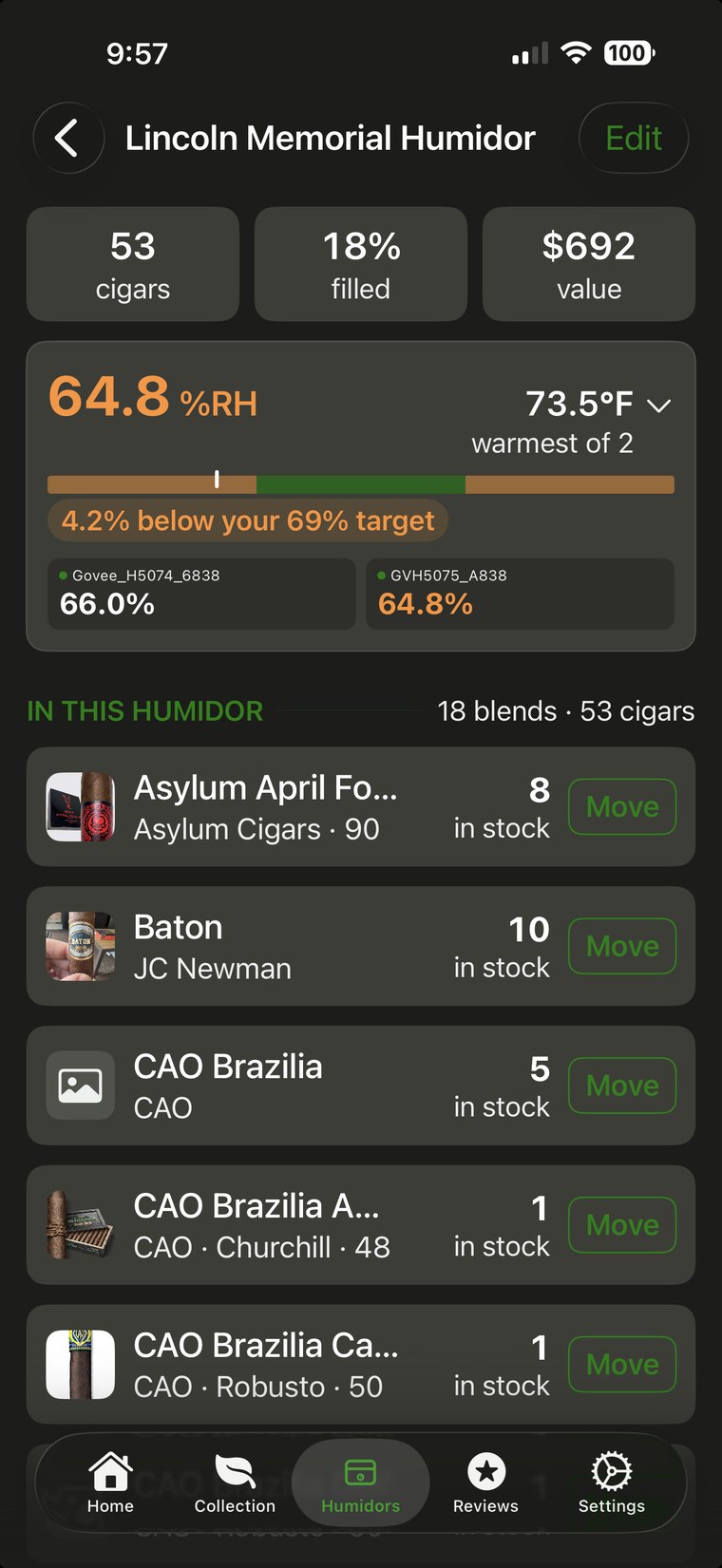
The big number is the reading furthest from target — the one worth knowing about. The bar underneath shows where you are inside your tolerance band, and the chip spells out the gap in plain language.
With more than one sensor in a humidor, each is listed separately underneath so you can see how the top and bottom of a cabinet differ.
- Current humidity and temperature, compared against that humidor's target and tolerance.
- A warning when a reading has gone stale — usually the sensor is out of range or the app hasn't been open.
- A low battery warning while there's still time to do something about it.
Keep the sensor within roughly 30 feet of your phone. Thick cabinet doors and metal coolers cut that down considerably.
Insights
The lower half of Home breaks your in-stock cigars down six ways. Tap the pills to switch:
- Country — where your tobacco actually comes from.
- Brand — your top eight, with everything else summarised on one line.
- Strength — ordered mild through full, not alphabetically.
- Price — four bands, from under $10 to over $35.
- Wrapper — the leaf, where you've recorded it.
- Count Type — owned against want-to-try against archived.
The Total Value card splits in-stock from archived value, so you can see what's sitting in your humidors right now separately from what you've smoked over the years.
Settings & your own lists
App defaults
Country, Brands, Ring Gauge, Size, Strengths and Blends are all lists you own. Edit them and every picker in the app changes to match. Load Default Picker Data repopulates them with a sensible starting set if you've cleared something by accident.
Packaging presets
Settings → Packaging holds the box sizes you actually buy — 25-count Box, 10-count Box, 5-count Tin, Single, and so on. These are the choices you get when adding a lot, and each carries its count, so picking “25-count Box” fills in 25 without you typing it.
To add your own, type a name and a quantity at the top of the screen and tap Add. A 4-count Coffin becomes “4-count Coffin”, sorts itself into the list by size, and is tagged custom so you can tell your additions from the ones that shipped. Swipe any row to delete it, and Restore standard sizes at the bottom brings back anything you removed.
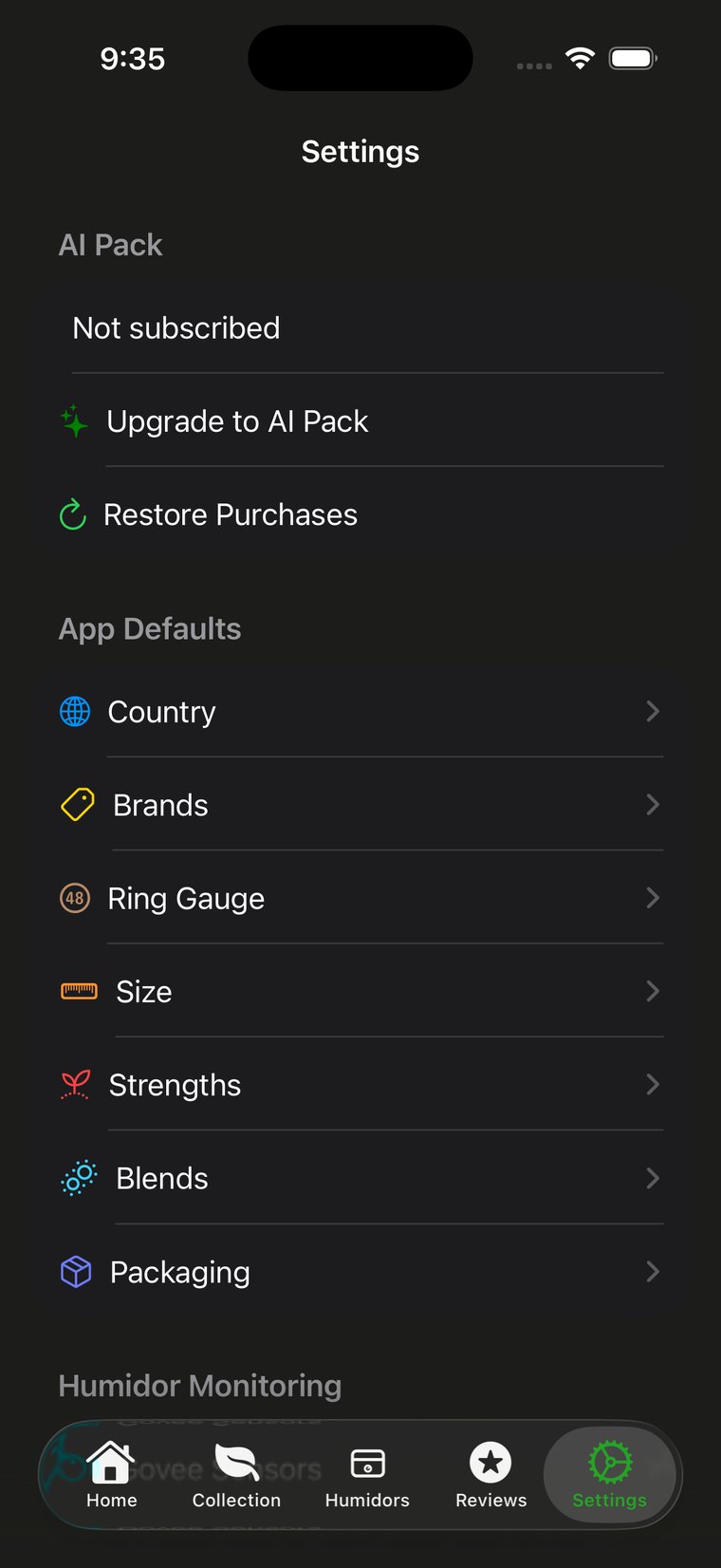
Everything the pickers offer you comes from these lists — they're worth ten minutes early on.
Backup & restore
Settings → Data Management exports your collection as a CSV file you can send to yourself, keep in Dropbox, or open in a spreadsheet. The same screen imports a CSV back in.
Take an export before a large import or a big reorganisation. It's the fastest way back if something doesn't go the way you expected.
Troubleshooting
A count doesn't look right
Open the cigar and look at the lots list. The total is every lot's remaining count plus any loose stock. If one lot is wrong, tap it and correct the number directly — you don't have to unpick anything else.
A cigar doesn't appear under its humidor
It probably has no humidor set. Open it, set one, and check whether any individual lot has an override pointing somewhere else.
Search isn't finding something
Accents don't matter — typing Padron finds your Padróns, and Anejo finds Añejo. Search covers the cigar name, the brand and the size, but not your tasting notes, so try a word from the name itself rather than something you wrote in a review.
No sensors appear
- Check Bluetooth is on and that you allowed Ash Tag to use it.
- Bring the sensor within a few feet of the phone and wait ten seconds.
- Confirm it's an H5075 or H5074 — other Govee models broadcast differently.
- If the sensor's battery is nearly flat it may stop broadcasting entirely.
Still stuck
Settings → Help, or Submit Feature Request if it's something you'd like the app to do that it doesn't yet.
More questions?
The FAQ covers what comes up most — counts and lots, humidors, sensors, scanning and backups. If none of it helps, get in touch.